Augmented Theatre turns every phone in the house into part of the stage design.
Text, sound, video, light, vibration — cued live from the show's media server, in perfect sync with the performance.
AUGMENTED THEATRE SHOW · 2016 · PHOTO — LEONID SELEMENEV
AudienceAugmented Theatre App
The audience downloads it before the doors open, and then forgets it: there is no account to make,
nothing to configure, and nothing to press. From the moment the show begins, every phone in the house answers the
booth at once — a hundred screens, a hundred speakers and a hundred small lights that the director can play like
any other instrument on stage.
Suddenly a distant sound is heard as if from the sky, the sound of a string breaking, dying away
The Cherry Orchard
WordsSurtitles, in any languageA line appears in every hand at the moment it is spoken — the translation, the letter being read aloud, the thought nobody says. As large or as quiet as the scene needs.
PicturesFilm and stills, togetherVideo and photographs play on every phone at once, started by a single cue and running in step across the room.
LightThe house becomes the lighting rigA hundred screens fill with one colour, or a hundred torches come up together — an effect no lantern in the grid can make, because it happens inside the audience rather than above it.
TouchSomething felt, not watchedThe show reaches into the audience's hands: a pulse timed to a heartbeat, a knock, a tremor under the seats.
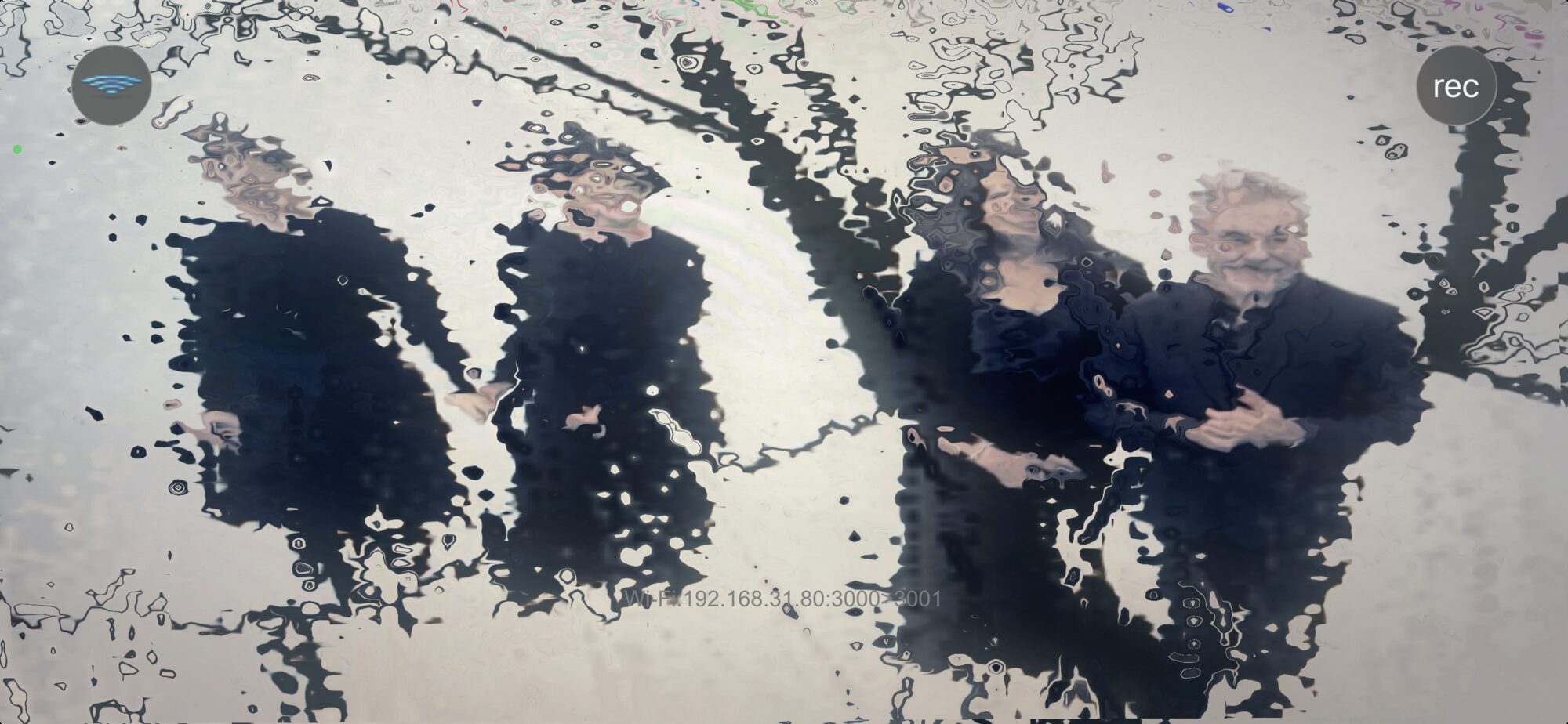
The roomThe theatre through the cameraPhones raised, the venue itself is seen through rain running down the glass, through heat rising off the stage, through scratched film — or turned around, so the audience is looking at itself.
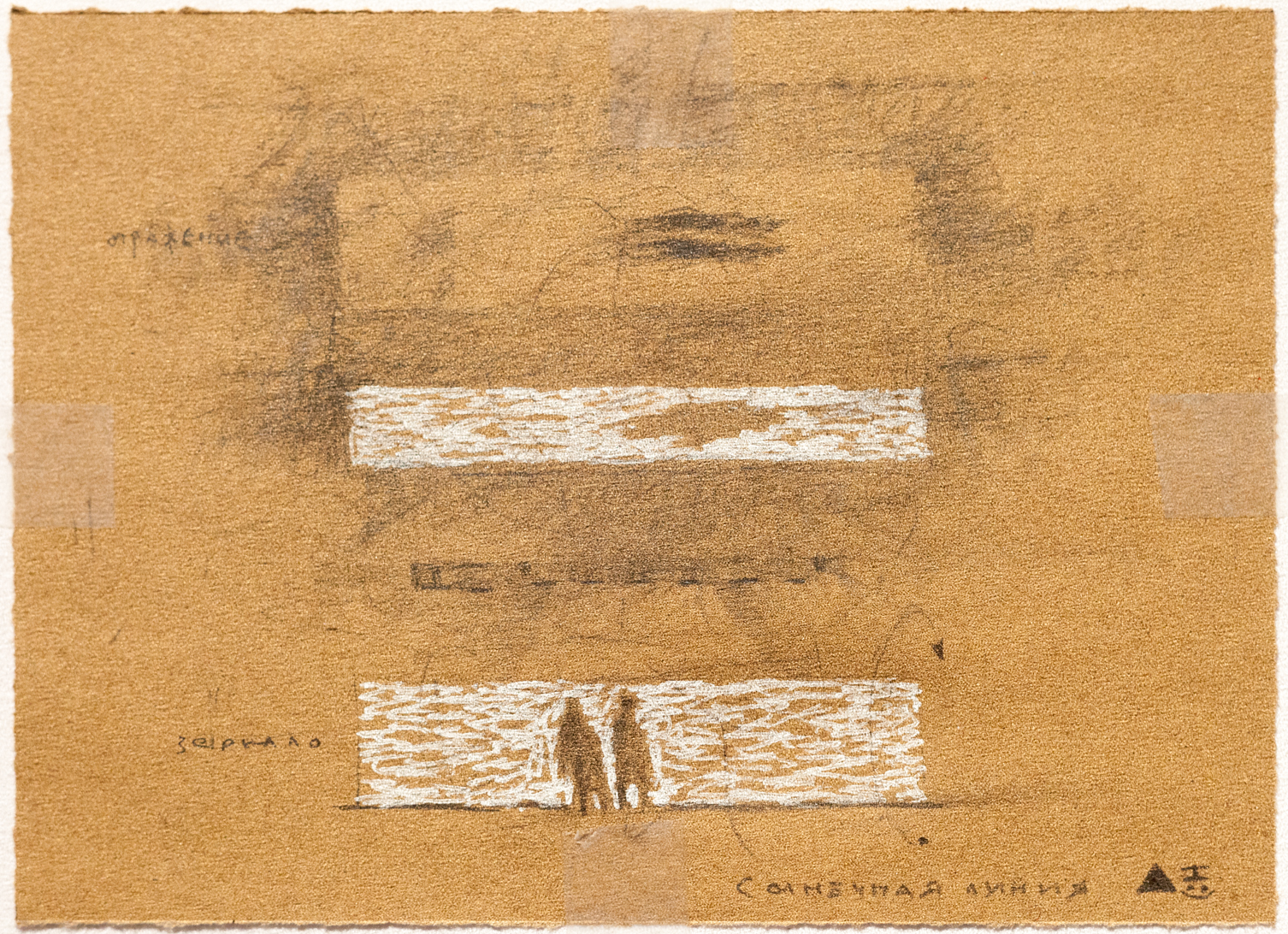
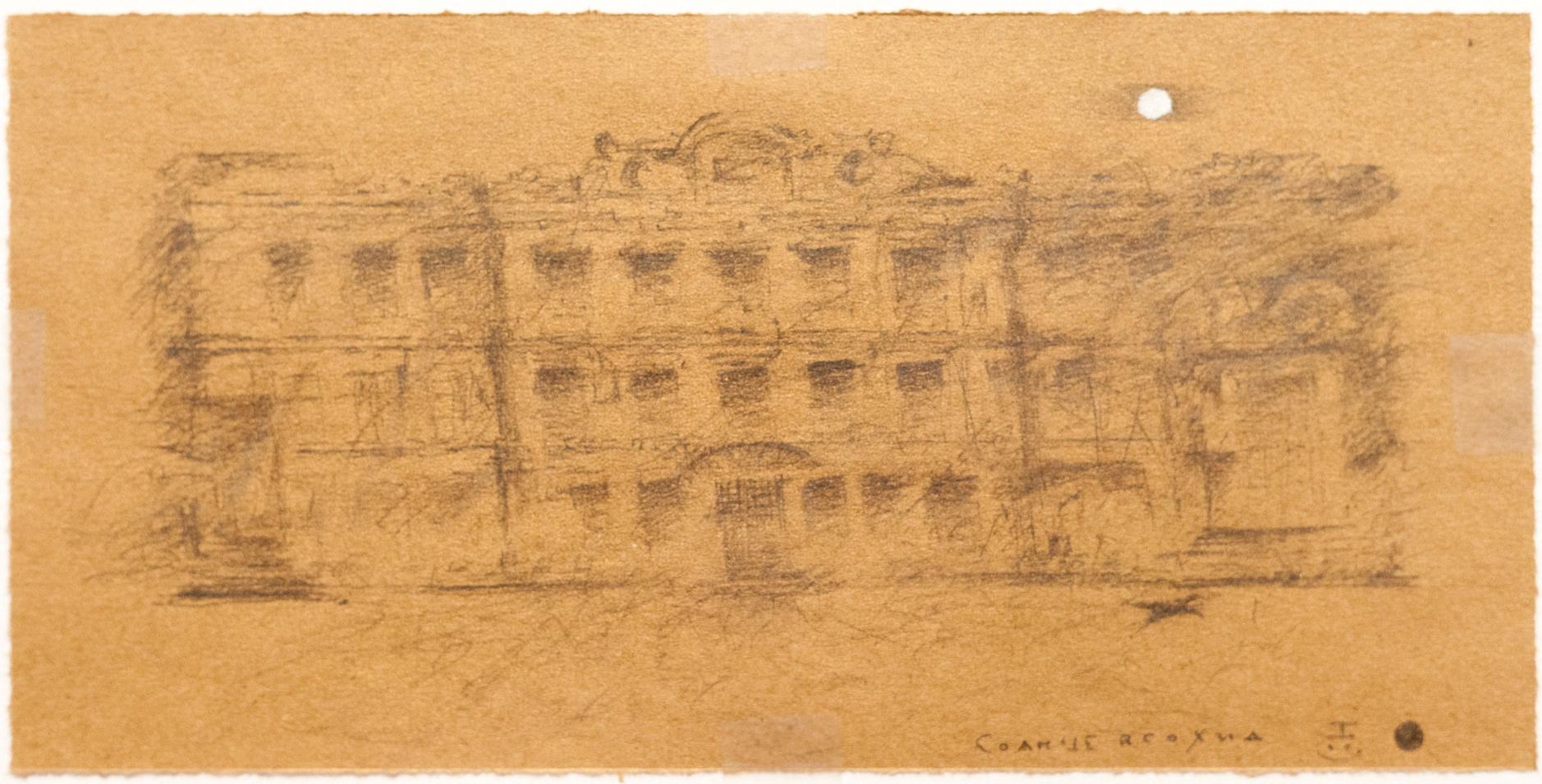
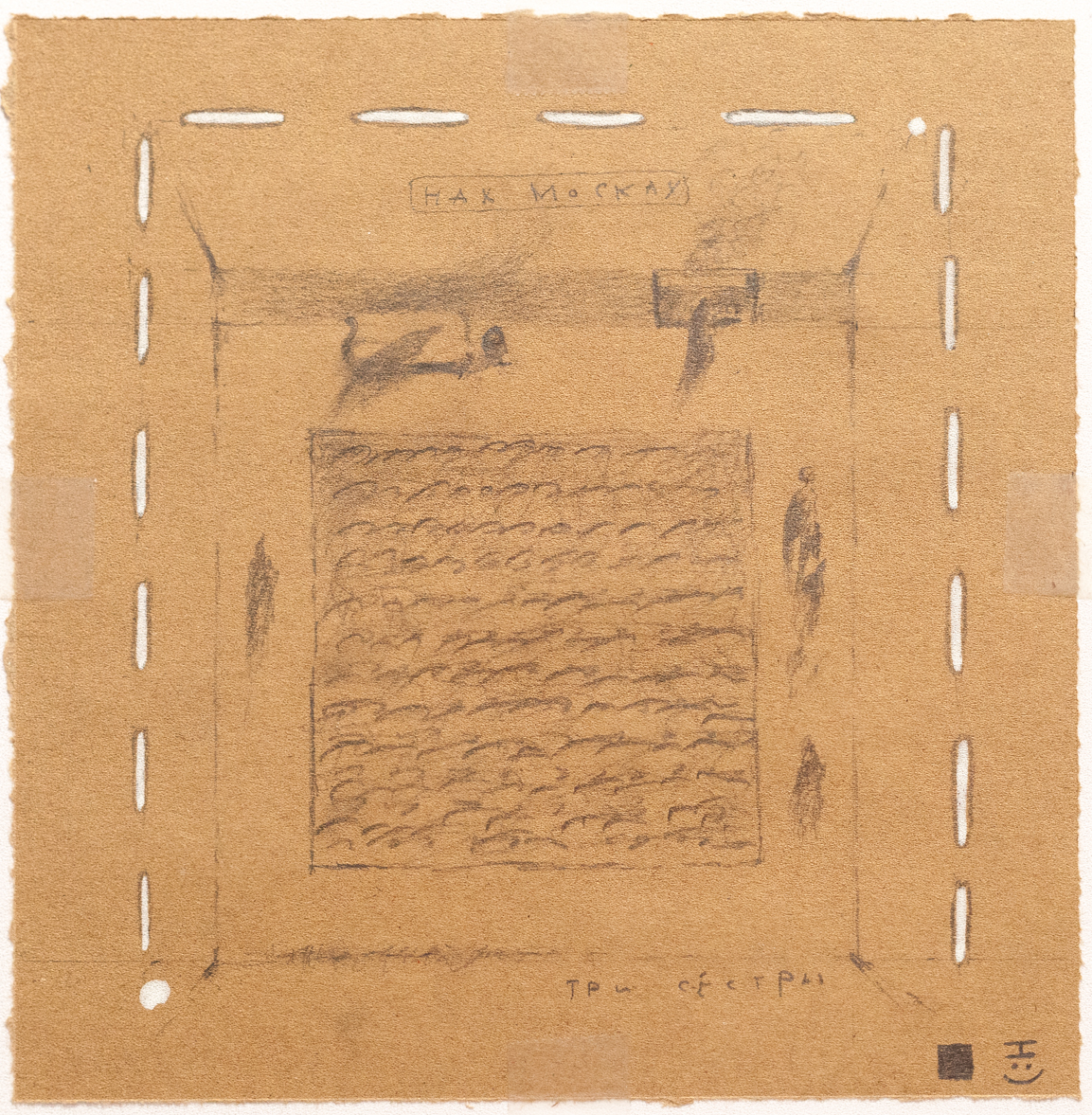
SceneryA set that stands on a drawingThe audience holds a printed image, points a phone at it, and the scenery rises off the paper in three dimensions with video playing on its surfaces.
VoicesSound that has a place in the roomWith headphones, a voice can be set down beside a listener and moved around them mid-sentence — behind the shoulder, across the room, close enough to flinch from.
Sound, seenA look that listensA shader lit by the phone's own microphone, brightening and moving with whatever the room is doing right now — the same cue plays a little differently every night, because the room never sounds quite the same twice.
Before curtainEverything arrives during the walk-inThe evening's media reaches every phone quietly while the audience finds its seats, over the venue's own Wi-Fi — no internet, no waiting, and nothing on screen until the show wants it.
Free on the App Store and Google Play. It carries no advertising, asks for no account,
and works entirely on the venue's own network — a phone that walks out of the building goes back to
being a phone.
AR, from the audience's own device
AR in Augmented Theatre: point the app at one of Nikolai Simonov's stage drawings and watch the set come to life.
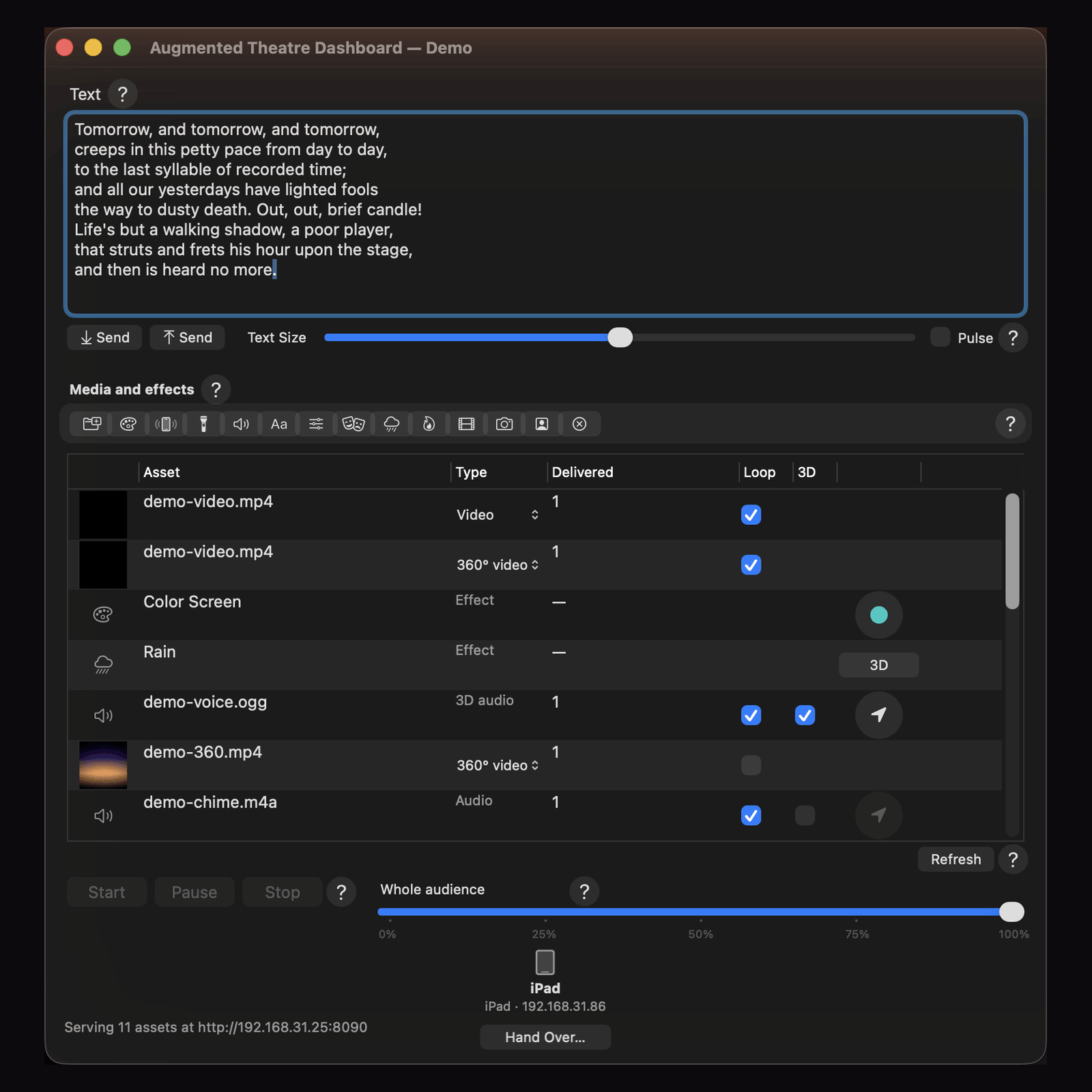
The whole booth in one window. Paste the evening's script and walk it line by line;
stage the show's media during walk-in and watch the audience load it; build a running order where
effects and files are equals — the same clip flat in act one, wrapped around the viewer in act two.
Built for the five minutes before curtain, on the venue's own Wi-Fi — no internet required.
SHIFT-RETURNThe script padPaste the whole evening's surtitles. Each press sends one line to every phone and steps to the next; the line the house is reading stays marked. ⌘-Return steps back when the show retreats on you.
CUSTOMDelivery during walk-inPictures, video and sound reach every phone quietly before curtain; a phone never fetches what it already holds.
THE LISTA timeline of instancesMedia and effects side by side, dragged into running order, duplicated with ⌘D — and every instance carries its own settings: the same clip can play flat, wrap the viewer as a 360° sphere, or drive a camera effect.
THIRTEEN CHIPSThe effect vocabularyRain on the glass, heat shimmer, scratched film, rain falling in a sphere, the live camera and the mirror, a colour screen, a vibration, the torch, a system sound, a shader that reacts to the room's own microphone — each chip adds an instance to the show.
3DA voice around the listenerBinaural audio placed anywhere in the room and moved live with a position pad — even mid-line.
GLSLA shader, checked before it shipsDrop in a fragment shader and the Dashboard compiles it against the same GLES rules a phone's own graphics driver enforces, then checks what no compiler can — that every uniform it asks for is one the app can actually feed it. A shader that would go black on the handsets is refused at the door, never sent. Start hands it to the house; each phone drives it from its own microphone.
DROP A FOLDERAR sets, deliveredThe designer's folder — anchor, model, projections — validated, bound and sent to the house as one thing, raised and struck on cue.
START · PAUSE · STOPOne word eachStart plays a clip, shows a picture, fires an effect, raises an AR set — whatever the row is. Stop takes it away.
UPDATE ASSETSThe delivery tallyHow many phones hold each file, and how far the rest have got — live, with the in-flight percentage.
0 – 100%Part of the houseAny cue can address a fraction of the audience rather than all of it.
RIGHT-CLICKLift the cue off the rowCopy OSC Address puts the exact cue a row fires on the clipboard — one line, naming the file the way you could have typed it. A flat row and a 360° row of the same clip give different cues, because they are different cues. Long-press does the same on iPad.
Free to download, with a demo show staged on first launch — a still, an animated GIF, a flat clip, a 360° clip, a sound, a voice placed in the room, an AR set and an audio-reactive shader, one of each thing the system can do. Text and the basic cues are free forever;
sending files, audience targeting and the delivery tally run free for five days and are included in the
full version — a one-time purchase. Requires macOS 11 or later.
The prompt bookThe Dashboard manual
The same help that ships in the app — every section of it. Also available in Russian, German, Spanish and French from the app's Help menu.
What this app does
The Dashboard is the operator's console. From the booth it sends cues over the venue's own Wi-Fi to the free Augmented Theatre app running on the audience's phones: lines of text, and the images, video and sound a production needs. There is no setup on the phones and no pairing — a device that hears a cue obeys it.
Shows
File ▸ New Show… asks where your shows live, then makes one. A show is an ordinary folder: a document with the show's name, and a media folder holding everything sent to the audience for it. File ▸ Open Show… reopens one, and Reveal Show in Finder puts it in front of you. Clearing a production once its run has ended is deleting that folder.
Text cues
Type in the large field and press Return to put that line on every phone in the house. The slider under it sets the size the text is drawn at. Pulse the text size makes the line breathe rather than sit still — press it again to stop.
Sending files
Send Files… stages images, video or audio for the show that is open. Only file types the phones can present are offered. Files are copied into the show's media folder and announced to the house, and the phones fetch them quietly in the background — during walk-in, ideally, so that a cue at curtain is instant. A phone never fetches a file it already holds.
AR stage sets
An AR set is a piece of scenery the audience raises in their phones over something real. The phone recognises an anchor — a printed drawing in their hands, an object, the stage itself — and the set stands on it, with video playing on its surfaces. Drop the AR set's folder onto the delivery table to import it — the Dashboard checks it, delivers it to the house like any other file, and the set appears as one row. Start raises it on the phones; Stop strikes it.
Building an AR set, step by step
1 · The anchor. The AR set is raised over something real, and the anchor image is how the phone recognises it. It can be a drawing printed and handed to the audience, a photograph of an object placed in the venue, or a photograph of the stage itself, taken from where the audience will stand. Any image works, but give it detail and contrast: at least 640 pixels across, and visually distinct from every other set's anchor in the show — two similar anchors make the phones guess which AR set to raise. Measure the real thing now: the width the anchor has in the venue (a printed A4 sheet is 0.21 m — the default) is what sets the scale of everything.
2 · The model. Build the AR set in Blender (or any tool that exports glTF), in real metres, in Blender's own Z-up axes. Imagine the anchor lying flat at the origin: the set stands on and around it, facing −Y — towards the viewer. An AR set anchored to a sheet in the audience's hands is small by design; one anchored to the stage is built at stage size. Name every surface that will carry video (screen-left, backdrop…) and UV-unwrap those surfaces — video lands through texture coordinates, and a mesh without them shows nothing.
3 · The projections. For each video surface, tell the AR set which file goes there. The cleanest way is in the model itself: add a custom property named video to the surface's object in Blender, with the video's filename as its value. Or skip properties and simply name each video file after its surface (screen-left.mp4). Or say it in ar-set.json — see below.
4 · Export. glTF Binary (.glb), one file — a .gltf with separate textures is refused. Two export settings matter: untick “+Y Up” (the phones expect the file Z-up, exactly as Blender has it, and do the turn themselves), and tick Include ▸ Custom Properties if the video bindings live in the model.
5 · The folder. One folder, named after the AR set: the anchor image, the .glb, the videos, and optionally a ar-set.json. Drop it on the Dashboard's delivery table. The import sheet checks everything — the anchor's size, the model's surfaces, every binding — and says plainly what is missing or ambiguous; nothing is sent until the errors are gone. Then Send, and the AR set travels to the house like any other file. Start raises it; Stop strikes it.
One folder holds one AR set. It needs the anchor image — a drawing to be printed and handed out, or a photograph of the object or stage the set will stand on (JPEG or PNG, at least 640 pixels across; detailed, high-contrast views track best) — and the set itself as a single .glb, authored in metres (a .gltf with separate textures will be refused). Videos beside them (.mp4, .mov, .m4v) are projected onto the model's surfaces: say which goes where in the model's own node properties (a custom property named “video” in Blender), in a ar-set.json beside it, or simply by naming the video after the surface. An optional ar-set.json can also name the anchor and model among other files and give two numbers: “widthMeters”, the real-world width of the anchor as the audience sees it (0.21 — an A4 sheet — if unsaid), and “scale”, a correction for models not authored in metres (1 if unsaid). Both can also be adjusted in the import sheet. Keep an AR set well under 60 MB — every phone pulls all of it during walk-in.
The ar-set.json companion file
A small JSON file beside the model, for what the files alone cannot say. Every key is optional — a folder with one obvious drawing, one .glb and self-naming videos needs no ar-set.json at all. The folder's name becomes the AR set's id and title.
marker — which image is the anchor, when the folder holds more than one. Without it, the first image alphabetically is used, with a warning.
model — which .glb is the AR set, when there are several.
widthMeters — the width the anchor really has in the venue, in metres: 0.21 (the default) for a printed A4 sheet, 0.297 for A3, or the measured width of the object or stage view photographed. The whole AR set scales from this one number — the same image printed at two sizes is two different anchors, so measure the real thing.
scale — a correction for models not authored in metres: the multiplier that brings one model unit to one metre. 1 (the default) for a correctly authored file.
projections — surface name → video filename, for models whose bindings are not in the file itself. Bindings written in the model's own custom properties win over ar-set.json; a video named after its surface is the fallback when neither says.
Audio-reactive shaders
A look driven by the room itself: a GLSL fragment shader that colours every phone's screen from whatever its own microphone is hearing, live — no two performances light it quite the same way. The waveform chip opens a picker for a single .frag file; before it ever reaches a phone, the Dashboard compiles it against the same GLES rules a phone's own graphics driver enforces, and a shader that would fail there is refused at the door, with the compiler's own error shown inline rather than a guess at what's wrong. What the shader can use is read from its own uniform declarations, not typed in by the operator: one that asks for the room's sound level gets it; one that also asks for the live camera image gets that too, composited underneath. Start sends it to the house; each phone drives it from its own microphone rather than anything broadcast over the network, which is why the look never quite repeats. Stop ends it and hands the microphone back.
Four things are fed in, and nothing else: uTime, the elapsed seconds; uLevel, that phone's own sound, nought to one; uResolution, the viewport in pixels; and uCamera, the live image, for a shader that asks for it. Because uResolution is there under that name, a shader written for Shadertoy usually ports by renaming a few uniforms rather than by being rewritten — iTime, iResolution and iChannel0 map straight across, and what's left is to write the main() Shadertoy was writing for you.
One ships with the app. The demo show staged on first launch now includes Rainbow Spinning Circle — a conic-gradient disc that turns, breathes and sits in three layers of neon glow, with the room's own sound driving its colour wheel, opening its breathing and lifting its glow. It is the one item in the demo that looks different in a full hall than an empty one, and it is there to be taken apart: it was ported from an Isadora GLSL Shader patch, and the two things that had to change on the way in — the dialect, and a parameter that had to become uLevel because there was nothing else to drive it from — are the two things every port runs into.
The checks a compiler can't make are made too, because each of them ends the same way — a wall of black screens and nobody in the booth knowing why. A uniform nothing can feed is refused by name, so uFrequency is caught at the desk rather than read as zero all night. So is the right name with the wrong type or declared as an array. A file with no main() — an empty one, a truncated download, a header somebody renamed — is refused as well: it passes every compiler, links on nothing. And a shader that never reads uLevel is sent, but with a word first, since it will look the same in a silent hall as in a full one, which is rarely what was meant.
Delivered to the audience
Loaded counts the phones that hold the whole file. In flight counts those still fetching it, with how far they have got on average. A dot beside a name means the audience is looking at that file right now. Phones report as they download; one that arrived with the file already cached from an earlier session simply never reports, so this table is a floor, not a headcount.
Copy OSC Address
Right-click a row in the delivery list — long-press on iPad — and Copy OSC Address puts that row’s cue on the clipboard exactly as it goes on the wire, as one line: the address, and the file’s name where the cue names a file. It is meant for wiring a patch in Isadora, or any other OSC sender, against this show. It copies the file’s name, which you could have typed yourself, and falls back to the digest only where two files in the show share a name. The share, the loop flag and the show are left out on purpose: those are whatever the Dashboard’s own controls read at the moment you copy, not part of the row.
Play, Pause, Stop, Show, Hide
Select a delivered file and use these to put it on the audience's screens. Play, Pause and Stop are for video and sound; Show and Hide are for stills. Stop returns to the start and leaves the screen as it was before. None of these touch the network beyond one small packet, so they are safe to fire mid-scene.
Part of the audience
The slider beside the transport decides how much of the house a cue addresses. Every phone rolls for itself, so at 40% roughly two in five obey — not an exact count, and a different two in five each time you fire. At the top of the slider the cue is for everyone.
The playhead
While video or sound is playing, the bar shows about how far in the audience is. The phones do not report their position, so this is the Dashboard's own clock, started when the cue went out. The ± figure is the spread across the house: one broadcast starts every phone at once, and what remains is the few hundred milliseconds of network and player start, widening very slowly as handset clocks drift apart.
The full version
Text and the show cues are free, always. Sending files, addressing part of the audience and the delivery table work for five days, and afterwards need the full version — a one-off purchase, available at any time from the application menu. A lapsed trial never interrupts a performance already running: the basic cues keep working.
The network
The Mac and the phones must be on the same Wi-Fi. Cues are broadcast on UDP port 3000, phones report on 3001, and files are served over HTTP on port 8090 — all three changeable in the Dashboard's Settings ▸ Ports…. Only the cue port must also be changed on the phones (iOS Settings; on Android, tap the network line on the idle screen seven times — the same guard Android uses for its own developer options); the other two are announced to the house in the cues. Phones learn where the Mac is from the cue itself, so nothing else needs configuring — but a guest network that blocks broadcast between devices will stop cues reaching the house.
ReferenceEvery cue, and who can send it
The phones answer OSC, so anything that speaks OSC can drive them — the
Augmented Theatre Dashboard for Mac and iPad, or a patch you wire yourself in
Isadora, for which a demo version is enough.
The difference is not the vocabulary but what stands behind it: delivering a file needs the
Dashboard’s own content-addressed store and file server, and an OSC sender with no store behind it
has nothing to serve. Presenting a file it has already delivered is open to anyone — as of
protocol v1.8 a cue may name a file by its name rather than its digest, so
/atc/play/360 tarkovsky-rain.mp4 is a line you can type. Everything else —
text, colour, vibration, the torch, sounds, and the six camera looks — was always one broadcast
packet any sender can fire.
OSC address
What it does
Augmented Theatre Dashboard
Isadora (or any OSC sender)
Words on every screen
/text/1
A string, and optionally a size — the surtitle every phone shows. The Dashboard sends it a line at a time from the script pad./text/1 "Tomorrow, and tomorrow" 40
✓
✓
/fontsize/1
A number — how large that text is drawn./fontsize/1 40
✓
✓
The audience's own device
/color/1
Three numbers, 0–255 — fill every screen with one colour./color/1 212 92 36
✓
✓
/vibrate/1
Buzz every device. Android reads an optional length in milliseconds; iPhones give their standard tap. Android also answers /vibrate/0./vibrate/1 500
✓
✓
/torch/1 · /torch/0
The torch on the back of every iPhone, on and off. Android has no torch here and shows a white screen instead.
✓
✓
/systemsound/1
A sound id — one of the sounds already built into iOS, played at the phone’s own ringer volume. iPhones only; Android does nothing./systemsound/1 1000
✓
✓
Looks over the phone's own camera
/atc/effect
A look by name — rain, heat, dziga, rain3d, camera, mirror — on or off, with an optional share of the house. One verb for all six./atc/effect rain 1 0.5
✓
✓
/rain/1 · /heat/1 · /dziga/1 · /rain3d/1
The same four looks, one address each: rain on the glass, heat shimmer, scratched film, and rain falling in a sphere around the viewer. Kept for patches written before the verb above.
✓
✓
/camera/1 · /camera/2 · /augment/1
The back camera straight to the screen, the front camera as a mirror, and look-around mode.
✓
✓
/rain/0 · /heat/0 · /camera/0 · /augment/0
The way out: whatever look is running ends and the phone is back to the show.
✓
✓
The house itself
/title/1
A string for the top bar of every phone — the act, the scene, the name of the piece. iPhones show it; Android ignores it. The Dashboard sends it from a Title instance, which carries its own words./title/1 "Act One, Scene Two"
✓
✓
/volume/1
A float, 0 to 1 — how loud clips and sounds play on every device. A level rather than a cue: nothing else depends on it having been sent, and it reaches whatever is playing right now as much as whatever plays next, so it can be ridden under a running clip. The Dashboard sends it from a Volume instance. A spatialized 3D voice is the exception — it does not answer this./volume/1 0.35
✓
✓
/start/1 · /stop/1
The house into the show, and back to the foyer. Start takes the show’s name and puts the poster up; Stop returns every phone to its idle screen. Both stop whatever is playing. The Dashboard sends them from a House instance — Start and Stop of one row./start/1 "cherry orchard"
✓
✓
Files delivered to the house
/atc/manifest
The show changed — fetch the manifest from the sender and quietly pre-stage anything not already held. Carries the file server’s port, the show, and where to report./atc/manifest 8090 "cherry orchard" 3001
✓
/atc/asset
One file by digest, with its size, MIME type, name, show, layout and 3D-audio flag — fetch it and present it./atc/asset 8ccfabc0…5954 4096000 8090 video/mp4 rain.mp4
Transport for a delivered clip or sound, named by its digest or its name; play carries the loop flag and the share. The three addressed forms say the regime outright — flat, a 360° sphere, or the displacement look over the live camera — so playing a 360° clip is one cue and not a layout change the next cue has to lean on./atc/play/360 tarkovsky-rain.mp4 1
✓
✓
/atc/show · /atc/hide
The same two moves for a still./atc/show poster.jpg
✓
✓
/atc/layout
Retypes a held clip without presenting it — the modal form, for changing a clip’s type. To play a clip in a regime, the /atc/play/… address above is one cue and carries its own meaning./atc/layout tarkovsky-rain.mp4 360
✓
✓
/atc/loop
Flips looping mid-play, for a file or a whole AR set, without restarting it./atc/loop tarkovsky-rain.mp4 1
✓
✓
/atc/hrtfpos
Moves a spatialized voice around the listener — metres right, up and forward — live, even mid-line./atc/hrtfpos voice.ogg 1.5 0 -2
✓
✓
/atc/raise · /atc/strike
An AR set stands up on its anchor, and comes down again./atc/raise three-sisters
✓
✓
/atc/audioreact
A shader by digest or name, on or off — driven live by the phone's own microphone rather than anything sent over the network, so one shader plays a different way on every device. The shader is given the elapsed time, that phone’s own sound level, the viewport size, and the live camera if it asked for one. Answered on both iPhone and Android. Starting one stops whatever is playing, and any cue with sound or video ends it: a device cannot listen to a room it is playing into./atc/audioreact 1 breathing-room.frag
✓
✓
/atc/inventory
Asks every device what it holds for this show; devices answer on the telemetry port. The Dashboard’s Refresh sends this and the manifest together, so a device that is behind is mended as it is counted./atc/inventory "cherry orchard"
✓
/atc/discard
Deletes one file, wherever it is filed./atc/discard poster.jpg
✓
✓
/atc/clearshow
Deletes everything held for one production — the night a run ends./atc/clearshow "cherry orchard"
✓
Older addresses the apps still answer
/heartbeat/1
Keeps late arrivals and restarted apps in show mode.
The Firebase era: play a file from the app’s own documents folder by name. Both apps still parse these, but the background sync that used to fill that folder no longer runs, so in a current build there is nothing for them to play. Superseded by /atc/manifest and /atc/asset, which deliver over the venue’s own Wi-Fi and need no internet at all.
Since protocol v1.8 these cues name a file by its name as readily as by its digest,
so /atc/play/360 tarkovsky-rain.mp4 is something you can write by hand. If you
would rather lift it than type it, right-click any row in the Dashboard’s list — long-press on iPad —
and Copy OSC Address puts that row’s exact cue on the clipboard. It copies the name, falling back
to the digest only where the show holds two files under one name and the name would not say which. What
it copies leaves out the share, the loop flag and the show: those are whatever the Dashboard’s own
controls happen to read at the moment you copy, rather than anything about the row itself.
Cues are broadcast on UDP port 3000; the phones learn where the sender is from the
packet itself. The last group is what remains unclaimed: answered by the apps but sent by no Dashboard
control, reachable only by hand from a patch like the one below — and the cloud addresses among
them have nothing behind them at all any more.
To brand the app for your production, write to
or
the Facebook page.
Curtain callPremiered on a real stage
The app premiered in the first Russian augmented-theatre production
at the Meyerhold Theatre Center, Moscow, September 4, 2016.
Director Victor Ryzhakov · music director Tatyana Pykhonina · video artist and interactive media programmer Vladimir Gusev.
Vladimir Gusev
NYC-based, critically acclaimed theatre and art videographer and media director. His interactive productions in the US, Europe and Russia blend video, sound, light, generative graphics and audience interaction to extend the traditional notion of theatre.
Meyerhold Theatre Center
An innovative theatre laboratory and a leading Russian theatrical production, experiment and education organization.
The apps
iOS · Android · the Dashboard for Mac — rebuilt in 2026 for current devices. The app is show-agnostic: any production can brand it and drive it as its own.
MiscellaneousExtra tools, for testing and troubleshooting
Not part of running a show — for building and checking one.
Testing the app without a Dashboard
Six taps on the idle logo, inside a two-second window, opens a hidden menu of buttons that run the same code each cue above runs — a surtitle, a colour fill, a vibration, the torch, each of the six camera looks, entering and leaving the show — without a Dashboard anywhere on the network to send them for real. Every button is the actual handler, not a mock of it: a shader, a capture, a network call, whatever the real cue touches, this touches too. It ships in every build, alpha and TestFlight included, since that is exactly where it earns its keep — checking a build behaves before it reaches an audience, on a phone with nothing else to talk to. Close returns to the idle screen and re-arms the six-tap gesture for the next cue.
Firing cues from Isadora, step by step
Put the device (running Augmented Theatre) and the computer on the same Wi-Fi network.
Download and install a demo version of Isadora from TroikaTronix (Windows & macOS).
Open the scenes left to right; the comments in each list the keyboard actions that fire cues. Press them and watch the device answer.
The broadcast port is changeable in the app's settings — useful for giving technicians a channel separate from the audience's.
What the house says back (UDP port 3001)
/atc/progress
device id, digest, bytes received, bytes total — sent while a file is downloading, and once more when it lands. This is what fills the Dashboard's delivery counts.
/atc/holding
device id, show, chunk number, and the digests it holds — the answer to /atc/inventory. A device holding nothing still answers, which is how the operator tells an empty phone from an absent one.
/atc/shader/error
device id, the shader’s name, and the compiler’s own words — sent when an audio-reactive shader will not compile on that particular device. The Dashboard checks every shader against a real GLSL compiler before it is sent, so this means one handset disagreed. The device is left exactly as it was and the look simply never appears there; without this message the booth would have no way to know which phone went dark.
/location/1
~once per second when Bluetooth is on: nearest proximity beacon name (or NONE), a unique device identifier, and the device IP.
/devicestate/1
on app state change: state (startup / foreground / background / shutdown), device identifier, device IP.
iPhone system sounds
These are Apple’s own, already on every iPhone — nothing to deliver, so a system sound is the one cue that works on a device holding no files at all. Useful when the house needs a sound at once and there was no time to stage one.
The alert tones below are the ones iOS itself lists under Settings › Sounds. All of them are short, and all of them are recognisable: an audience knows a text-message chime when it hears one. That is either exactly the effect you want or exactly the one you don’t. For anything that should sound like the production rather than like a phone, deliver a file and play it.
Alert tones
1020
Anticipate
1021
Bloom
1022
Calypso
1023
Choo Choo
1024
Descent
1025
Fanfare
1026
Ladder
1027
Minuet
1028
News Flash
1029
Noir
1030
Sherwood Forest
1031
Spell
1032
Suspense
1033
Telegraph
1034
Tiptoes
1035
Typewriters
1036
Update
Mail, messages and alarms
1000
New mail
1001
Mail sent
1002
Voicemail
1003
Received message
1004
Sent message
1005
Alarm
1007
SMS received
Short interface sounds
1057
Tink
1103
Tink — keypress
1104
Tock — keypress
1100
Lock
1101
Unlock
1108
Camera shutter
1109
Shake
1113
Begin recording
1114
End recording
No sound at all
4095
Vibrate only
The set varies a little by iOS version and device, and an id iOS doesn’t know plays nothing at all — silence, not an error — so try a cue on the phones you’ll actually use before the house is in. Some are also muted by the silent switch. The fuller community-maintained list runs to several hundred ids.



 or
or